
How Trinity Works: Variants Management
Product
%20(1)%20(1)%20(1).jpg)
Janis Vavere
Oct 26, 2026


How Trinity Works: Variants Management
When the same autonomy stack ships across a sedan, an SUV and a delivery van, most requirements stay the same while a few details change, such as turn speed, sensor height or braking distance. The usual approach is to keep a separate requirements set for each platform and try to keep them aligned, until one gets updated and another does not.
That is exactly the problem Variants Management is designed to solve. Now available in Trace.Space as part of Trinity, it lets you manage all product variants from one requirements set, reusing what is shared and defining the differences explicitly.
One requirements set for every configuration. The sedan, SUV and van all use the same shared requirements, while each variant pins the versions it needs.
Differences are explicit. Each variant can use its own item versions and parameter values, while keeping those values consistent everywhere they are used.
No duplicate documents to merge. Shared items are updated once, and Variant Comparison shows exactly where two variants differ.
Start each variant from a baseline
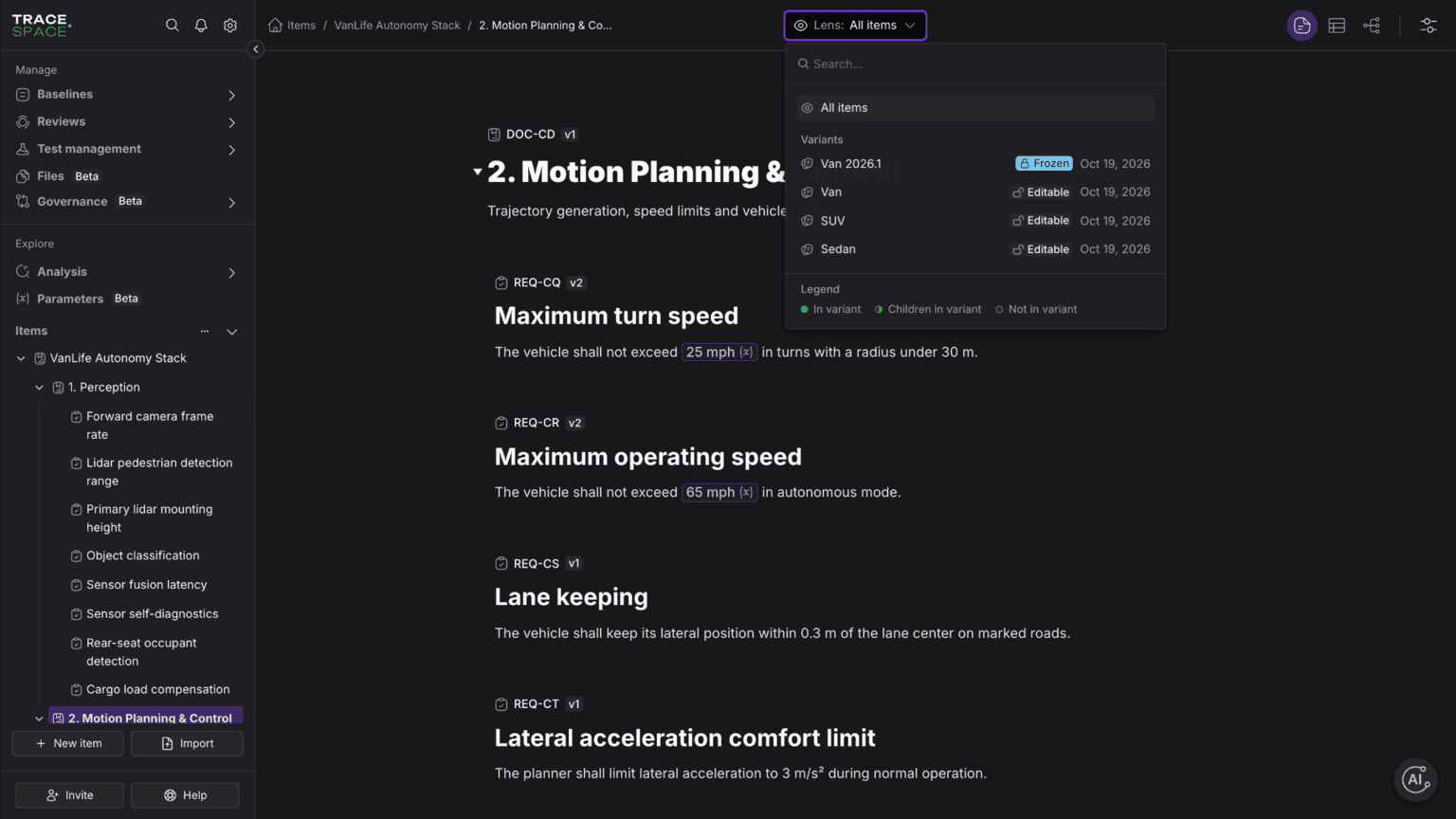
A variant is a named product configuration in Trace.Space. It is built from a baseline: a set of items, each pinned at a specific version, that together define one product.
To create a variant, choose the items that make up a product, baseline them and set the baseline as a variant. Repeat this for each configuration. The sedan and van variants then point to the same requirements and differ only where their pins differ.
It works like a bill of materials. A BOM lists part numbers at specific revisions without copying the parts, and a variant does the same with items and parameters. Engineers already use this model every day, so you can start without a modeling workshop.
Without variants, teams usually copy the requirements document for each configuration, an approach often called clone-and-own. A copy is accurate on the day it is made. After that, every change to the original has to be repeated in each copy, and a copy that missed an edit looks the same as an up-to-date one in reports and sign-offs. Variants Management removes the copies, so there is nothing to fall behind.
Pin what differs, share everything else
A pin fixes one item or one parameter at one version inside one variant.
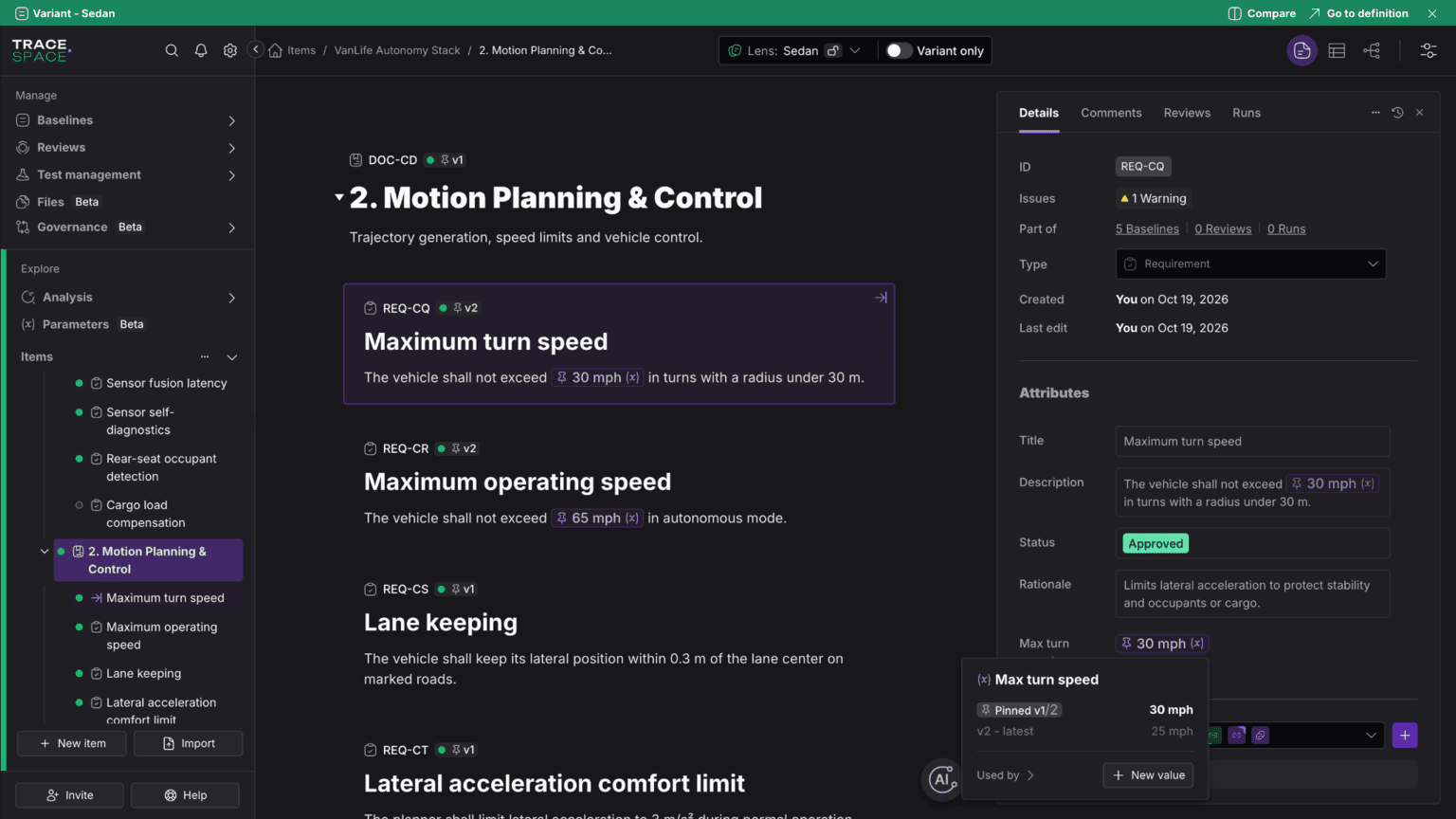
Take this requirement: "The vehicle shall not exceed {Max turn speed} in turns with a radius under 30 m." The {Max turn speed} parameter has two values: 30 mph and 25 mph. The sedan and SUV variants use 30 mph, while the heavier van uses 25 mph.
The requirement is written once, and each variant resolves it with the value that applies to that product. If the van pins {Max turn speed} to 25 mph, every requirement or design item using that parameter also reads 25 mph. This keeps values consistent across the whole variant and prevents different parts of the same product from accidentally using conflicting values.
Keeping related products in sync becomes much easier. Shared requirements are updated once, while each product's differences are captured in its variant pins. There is no need to maintain and merge multiple near-identical copies.
If a variant is pinned to an older version of an item, it stays there until someone chooses to update it. This gives teams control over when changes reach each product.
Work inside one variant, then freeze it for release
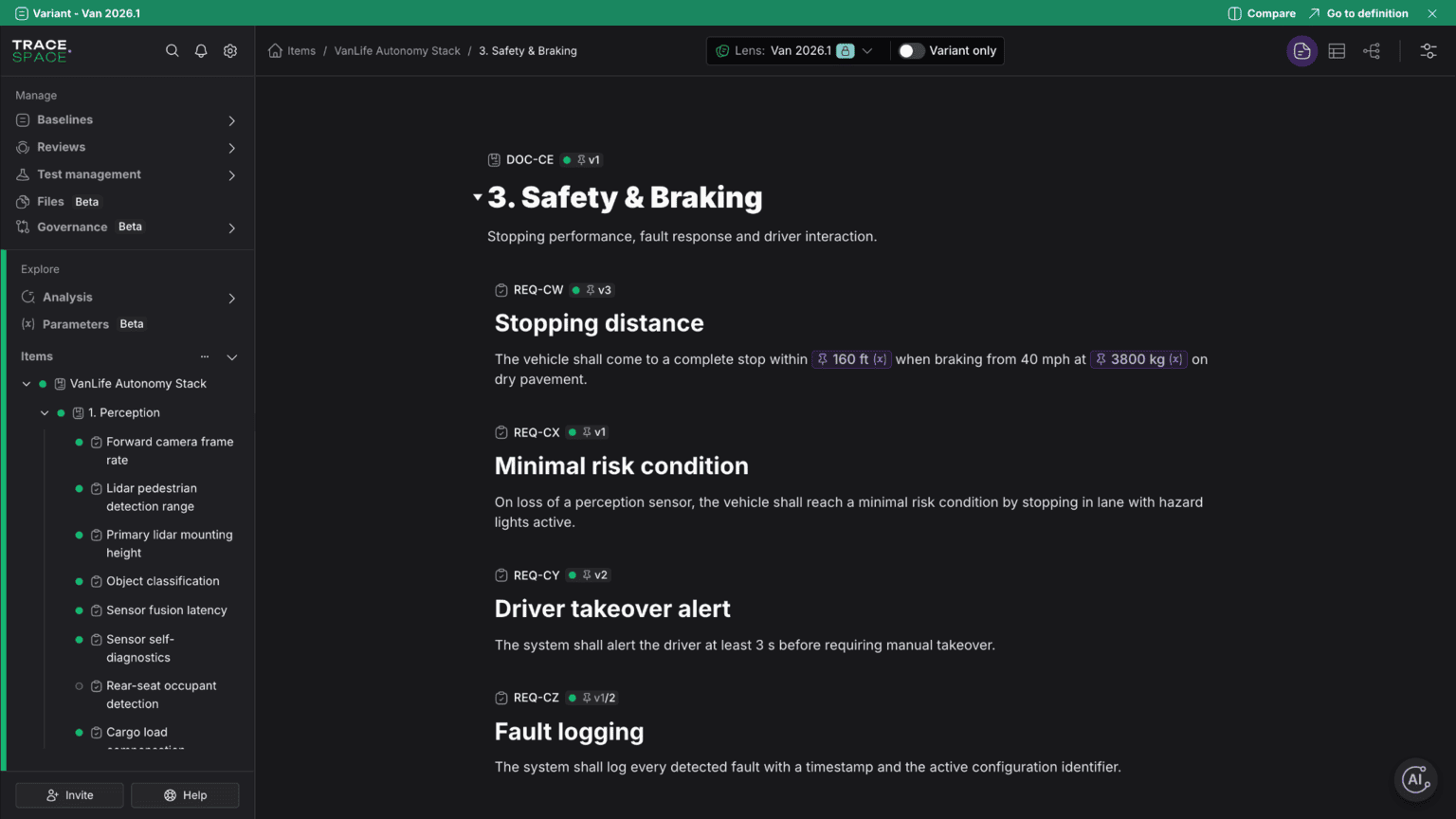
The Variant Lens lets you view a project as a specific product configuration. Switch to the van, for example, and the document reads like a regular requirements document, with the van's item versions and parameter values applied throughout.
It also lets you see how that variant compares with the live, non-variant items, so you can quickly spot where the product differs from the shared work.
Configuration-aware requirements tools have had similar building blocks for years. IBM DOORS Next Global Configuration uses streams, baselines and configurations, and a well-known failure mode is engineers editing in the wrong configuration because they could not tell which one was open. With the Variant Lens, you choose one variant and read that variant, instead of looking at a combined view of every product at once.
When a configuration is ready for release, you can freeze the variant, for example Van 2026.1. Its pins, parameter values and item versions then stay exactly as they were, preserving a clear record of what shipped while work continues elsewhere.
See exactly where two variants differ
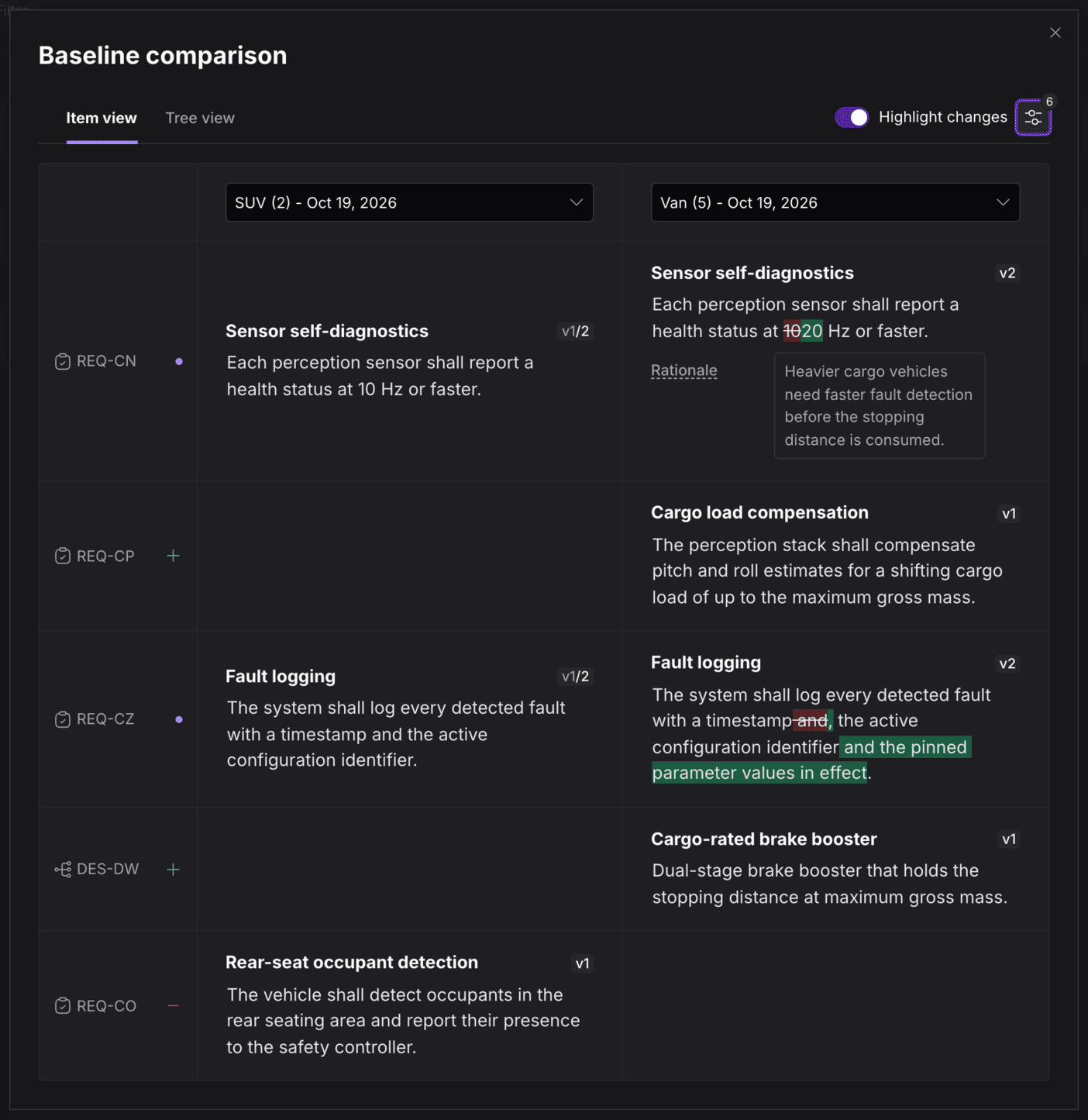
Variant Comparison shows two baselines or variants side by side and highlights only what differs. You can choose which attributes to compare, so comparing the van with the SUV can focus on differences like turn speed and sensor height instead of hundreds of shared items.
Use it before a design review, before releasing a configuration, or when a field report comes back from one platform and you need to know whether the others share the same cause. Without comparison, each of those tasks means opening two documents and reading them line by line.
What an auditor sees
Variants Management uses the same roles and permissions as the rest of your Trace.Space workspace.
Every pin, re-pin and freeze is recorded with who made it and when. The difference between two products becomes a list of decisions with names attached. That is what a regulator or a customer quality team asks for when they want to know why the van and the sedan have different turn speeds.
A frozen variant can also be reproduced exactly. An auditor sees the item versions and parameter values the product was verified against, unchanged since the freeze.
Getting started
Variants Management is available now in Trace.Space as part of Trinity.
Book a demo and we'll set up variants for your own product configurations, using requirements you have already imported.
See how Trinity works to see how variants, parameters, requirements and tests connect in one graph.
Trace.Space Introduces Trinity, the Agent Harness to Accelerate Physical AI
Janis Vavere
Sep 29, 2026
Where Are the Hundred Thousand?
Janis Vavere
Sep 3, 2026
Introducing Test Management in Trace.Space
Janis Vavere
Aug 5, 2026
See how Variants Management works
We’ll walk you through it using your own product configurations and the requirements you already have.


Built for Enterprise Engineering Teams
Want to see how Trace.Space fits into your stack?
Our team will walk you through enterprise use cases, integrations, and deployment options, tailored to your environment.